Guide to sending messages iMessage on iPhone
In the digital age, sending iMessage messages on iPhone has become a popular way of communicating for Apple users in Vietnam. Not only does it help send messages quickly, how to send iMessage messages on iPhone it also offers a more diverse experience than traditional SMS, especially when integrating unique images, videos, or emoji.
With iMessage, you can send messages for free between Apple devices, as long as you have a stable internet connection via Wi-Fi or mobile data. This is a big plus that helps users save costs and improve communication efficiency.
You can learn how to send imessage messages on iphone through zbet easily and quickly.
You can easily learn how to send imessage messages on iphone through 888new for faster and more convenient chatting.
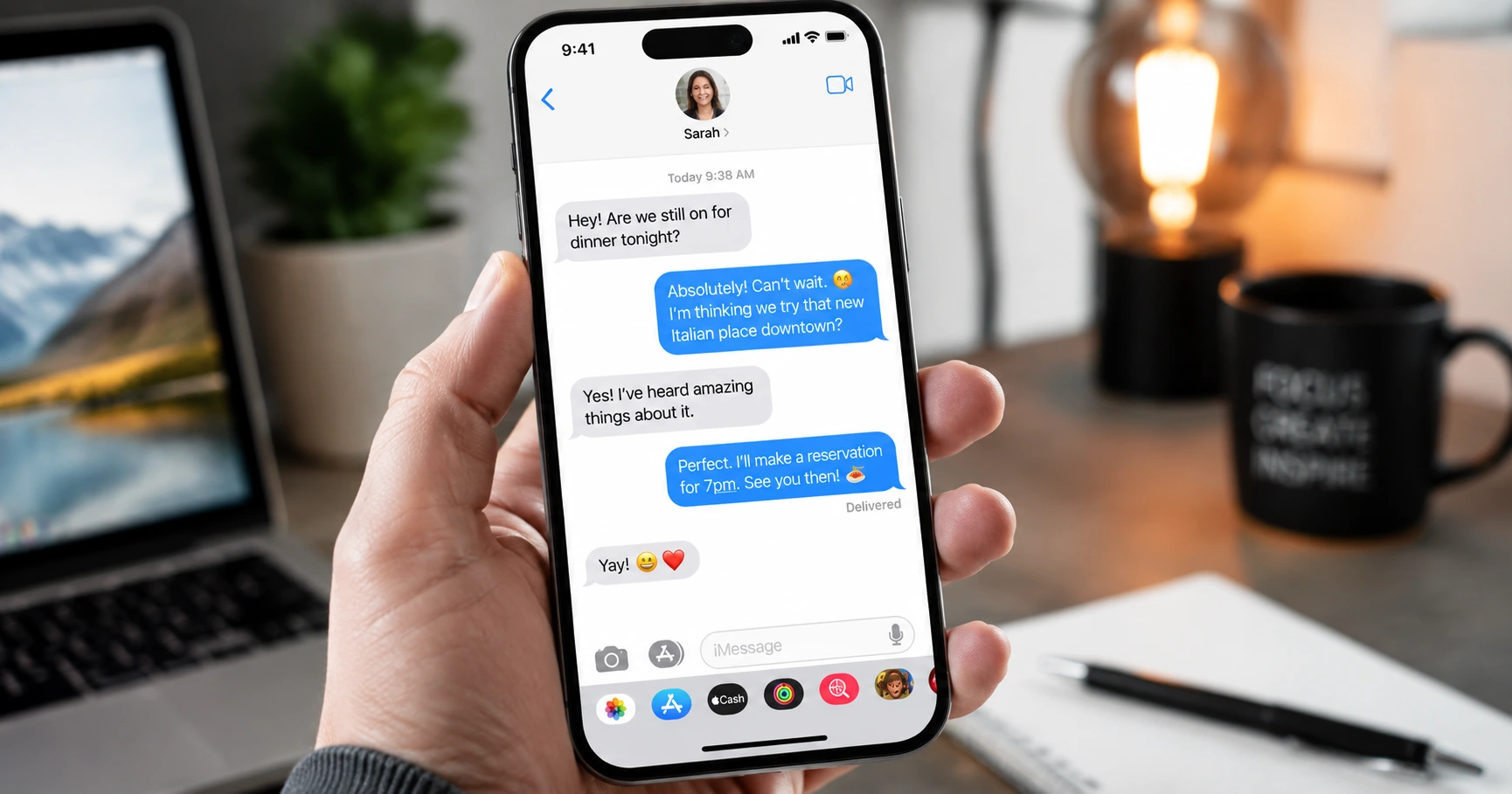
Besides that, how to send iMessage messages on iPhone it also supports sending attachments such as documents and links, making work and study more convenient. This feature is very popular in the context of many people working remotely or studying online today.
Check internet connection
Before you begin, you need to make sure that your device is connected to the internet via Wi-Fi or mobile data. This is the deciding factor for how to send iMessage messages on iPhone to work successfully.
In addition, checking network speed and stability is also very important. If the network is weak or unstable, messages may be sent slowly or not sent at all, affecting communication, especially when you need to exchange important information such as public order and safety news in the community.
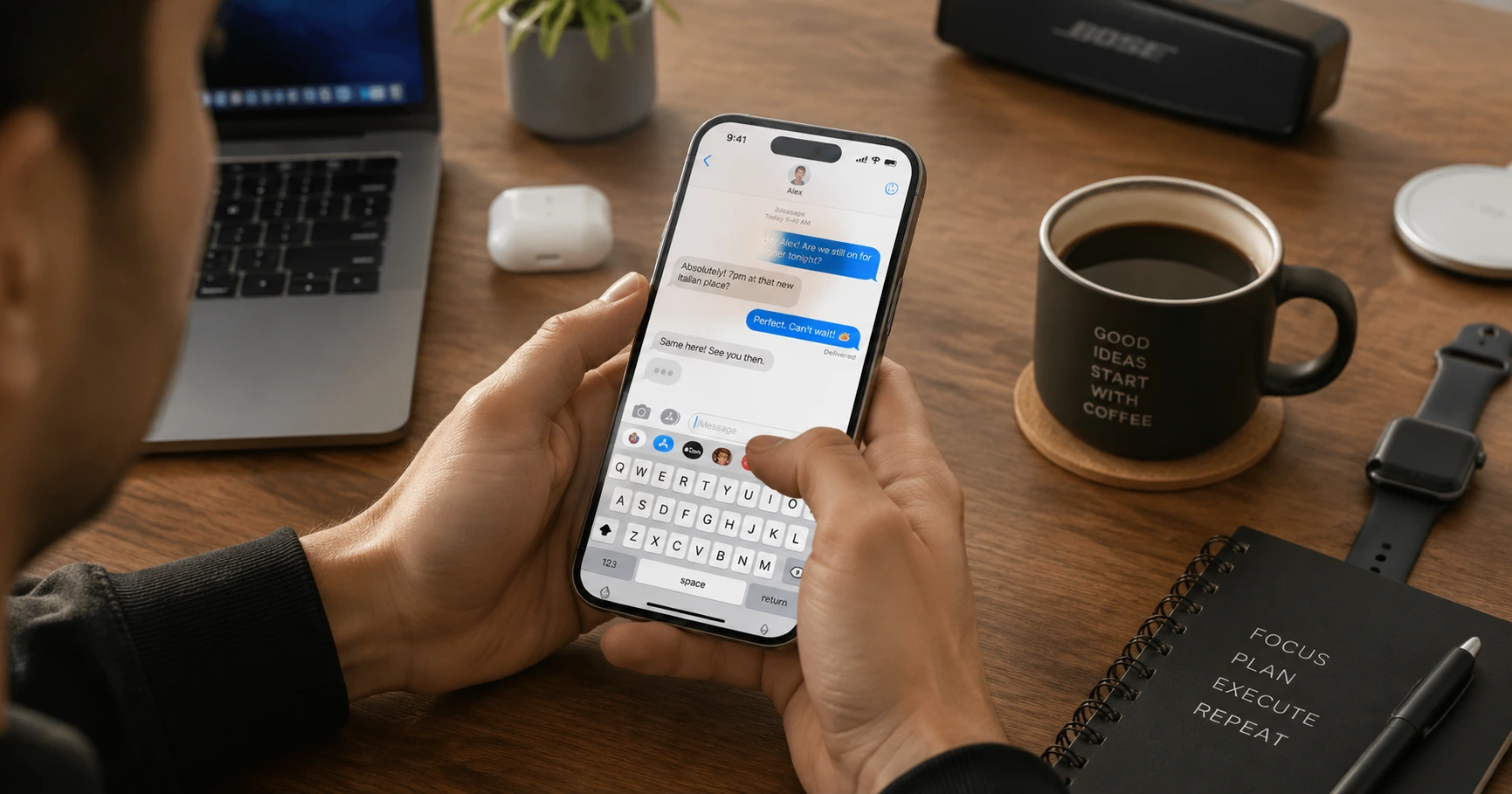
How to activate iMessage on iPhone
To activate iMessage:
- Go to Settings, select Messages.
- Turn on the mode iMessage.
- Wait for the system to confirm and activate successfully.
Note: you need to sign in to an Apple ID account to use iMessage. If you don’t have an account yet, sign up to make the most of your iPhone’s features.
Activating iMessage not only makes it easy for you to send messages, but also helps protect personal information, an important factor as users become more concerned about data security, especially in the context of issues related to public order and safety news being emphasized.
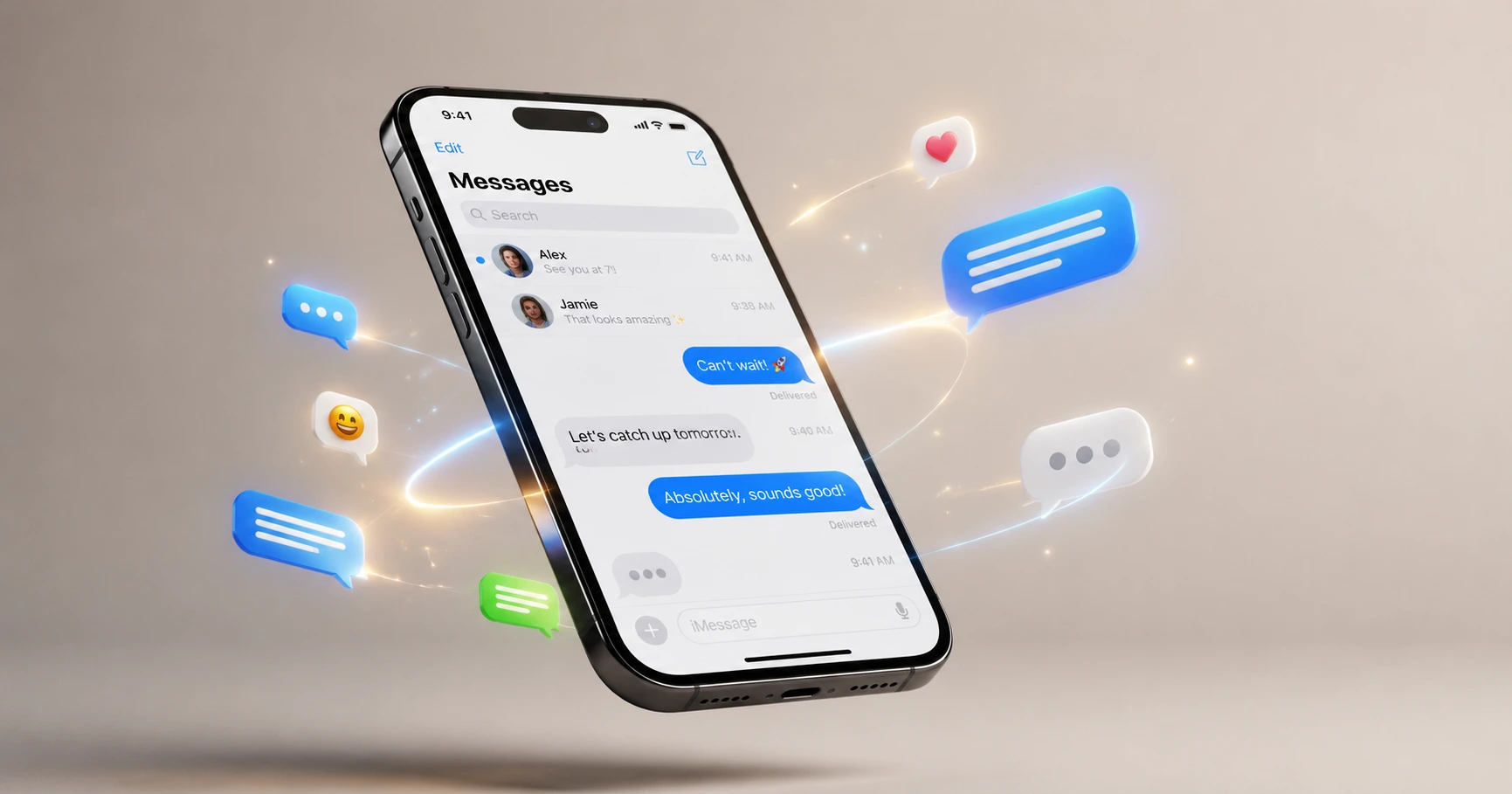
Sending configuration information iMessage on iPhone
| Information | Details |
|---|---|
| Operating system | Latest iOS |
| Network requirements | Wi-Fi or mobile data |
| Apple account | Sign in to iCloud |
| Settings | In the Messages section |
| Sending mode | Send only over Wi-Fi or mobile data |
In addition, you should regularly update the iOS operating system to ensure iMessage works stably and avoid errors. Updating also helps protect personal information, something users are increasingly concerned about, especially amid many news reports about public order and safety news being warned about in the media.
How to send multiple messages iMessage on iPhone
To send multiple iMessage messages on iPhone at the same time, you can select multiple contacts or chat groups to send simultaneously, saving time and improving communication efficiency in community or business activities in Vietnam.
Using chat groups in iMessage is also very convenient when you want to exchange information quickly with many people at once. This is one of the standout advantages of how to send iMessage messages on iPhone compared with other messaging apps.
In addition, you can use features such as sending photos, videos, documents, or even voice recordings to make the message content more vivid and clear, helping improve communication effectiveness.
Common errors and how to fix them when sending iMessage on iPhone
-
?
Can’t send messages?Check your internet connection and make sure iMessage has been activated correctly. Also, try restarting the device or signing out and signing back in to your Apple ID account. -
?
Can’t receive messages?Check your iMessage settings again and make sure your device is not blocking messages from the sender. Also, update the iOS operating system to avoid software errors. -
?
Messages sent as SMS?This happens when iMessage is not working or the internet connection is not strong enough. You can turn iMessage back on or check the network connection. Also, check whether the recipient is using an Apple device. -
?
Slow to receive or send messages?Check network speed, turn Wi-Fi or mobile data off and back on. Sometimes restarting the iPhone also helps improve this issue.
Understanding how to send iMessage messages on iPhone and troubleshooting steps will help you make the most of iMessage’s convenience, while avoiding unwanted hassles during use. In addition, using iMessage also helps improve personal information security, something users are increasingly concerned about, especially amid many concerns about the issue of public order and safety news nowadays.
Meanwhile, for those interested in financial or banking services, the question Is Vikki Bank reputable is also asked by many people. Choosing a reputable bank will help you feel more secure when transacting, especially when you use services related to sending or receiving money via iMessage or related apps.
In short, how to send iMessage messages on iPhone is not just about sending messages, but also a safe, convenient, and effective communication solution in modern life. Make sure you have activated and are using it correctly to enjoy the benefits that iMessage brings.